Manage Articles

Create free articles with rich content and CTAs into your courses or curriculums

How It Works

Articles are free-standing pieces of content — separate from course topics — that you can share publicly. Use the WYSIWYG editor for rich text and YouTube embeds, then attach a call to action (CTA) that sends readers to a course or curriculum you own.

Publishing requires a CTA. Set status to Published only after selecting a CTA course and/or curriculum you own.
For editor formatting and video embeds, see the Content Formatting and YouTube Embed guides.

Create an Article

1

Open Articles and start a new draft

From your educator area, open Articles, then click Create Article or New Article.
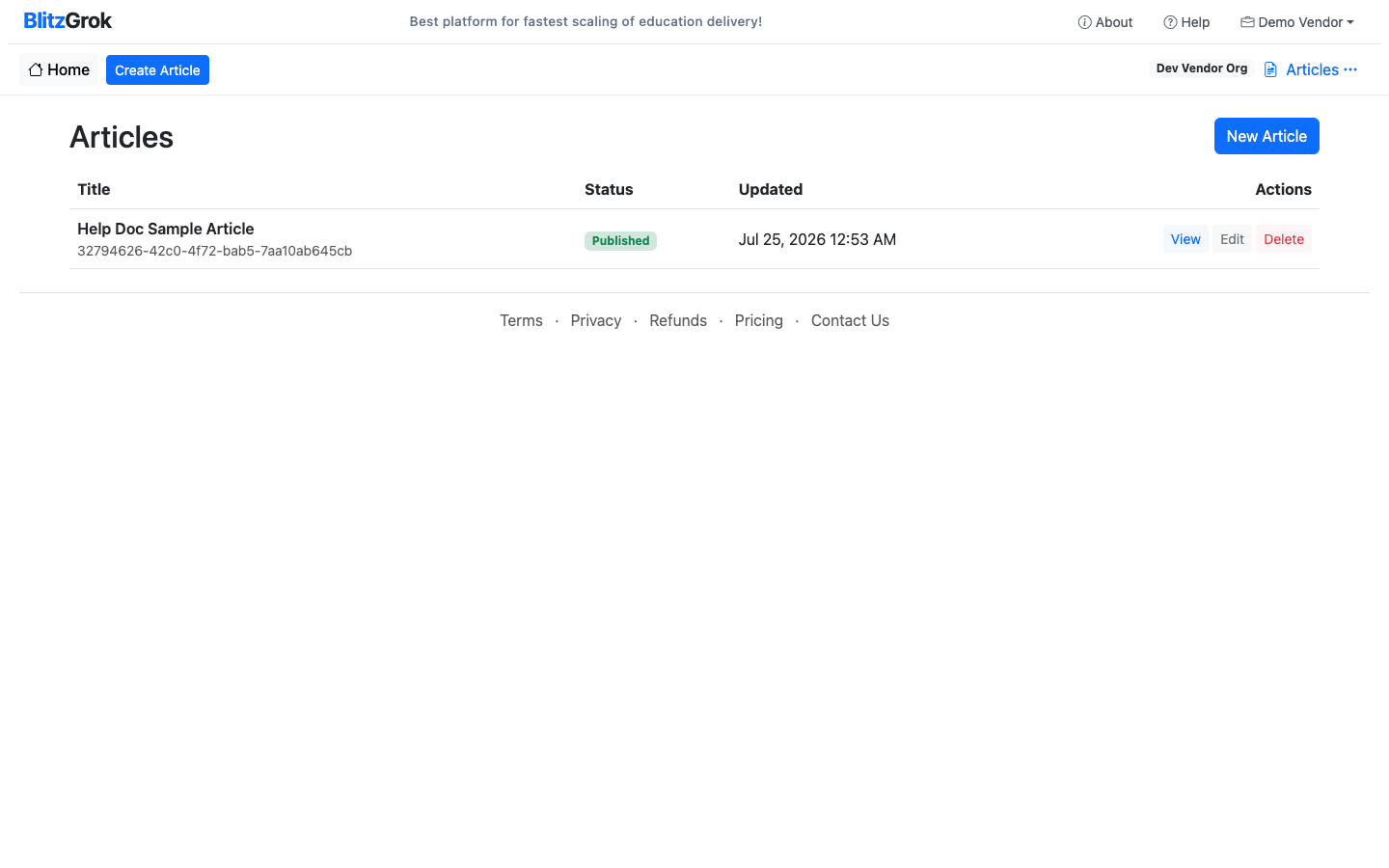
Articles list with Create Article and New Article buttons
Articles list — start a new article from Create Article or New Article
2

Fill in title, summary, and body

Enter an Article Title and optional summary. Write the body in the WYSIWYG description editor. Leave Status as Draft until you are ready to publish, then click Create Article.
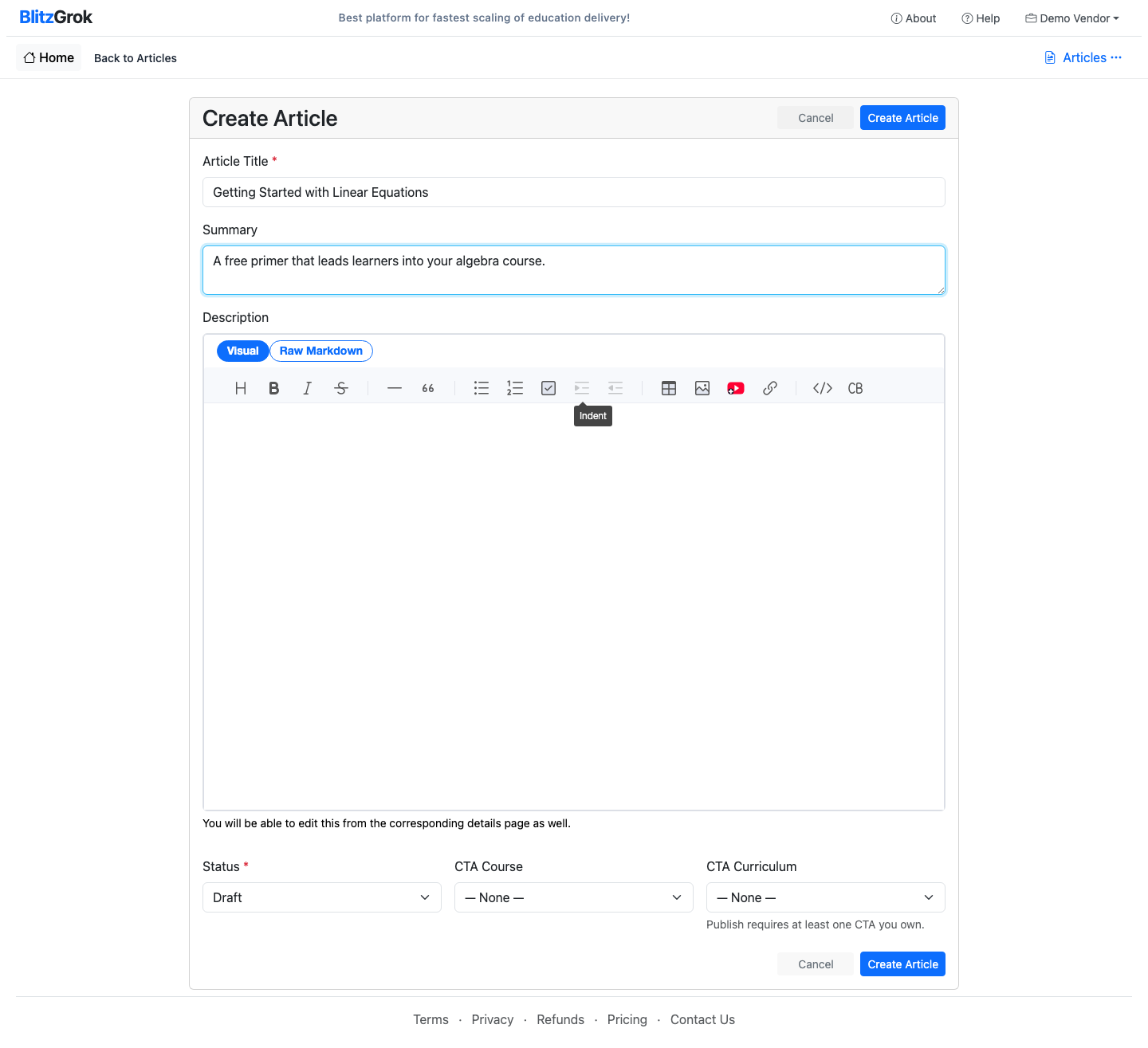
Create Article form with title, summary, and description editor
Create Article form — title, summary, description, status, and CTAs

Edit an Article

1

Open Edit and update content

On the Articles list, click Edit for the article you want to change. Update the title, summary, or description, then click Save Changes.
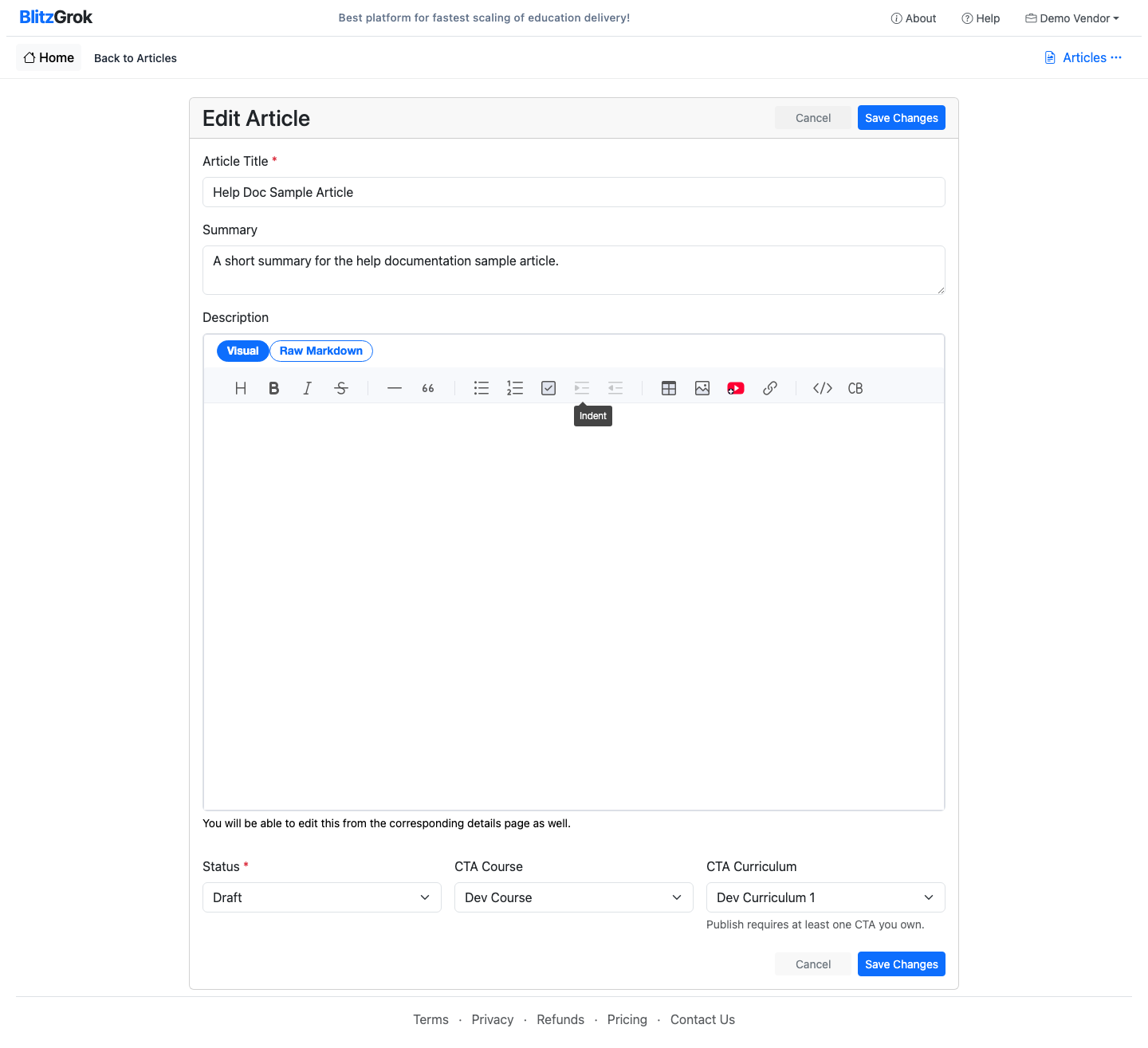
Edit Article form with existing content
Edit Article — update content and save changes

Add Calls to Action

1

Link a course and/or curriculum you own

On the create or edit form, choose a CTA Course and/or CTA Curriculum from the dropdowns. Only courses and curriculums you own appear. Published articles show these CTAs so readers can continue into your offerings.
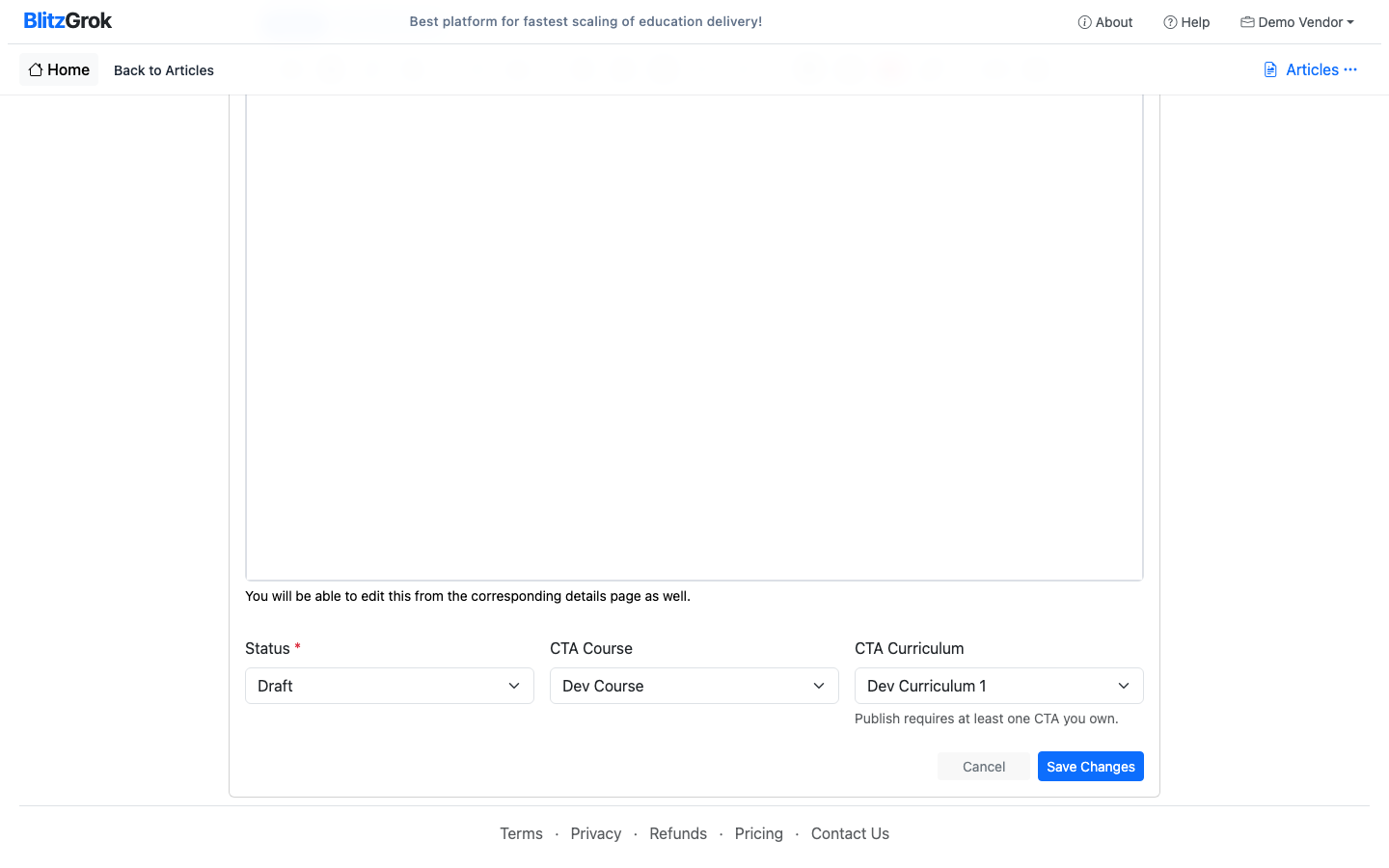
Status and CTA Course / CTA Curriculum fields on the article form
CTA Course and CTA Curriculum — required before publishing

Publish an Article

1

Set status to Published and save

Confirm at least one CTA is selected, change Status to Published, then save. The article becomes publicly listed for readers.
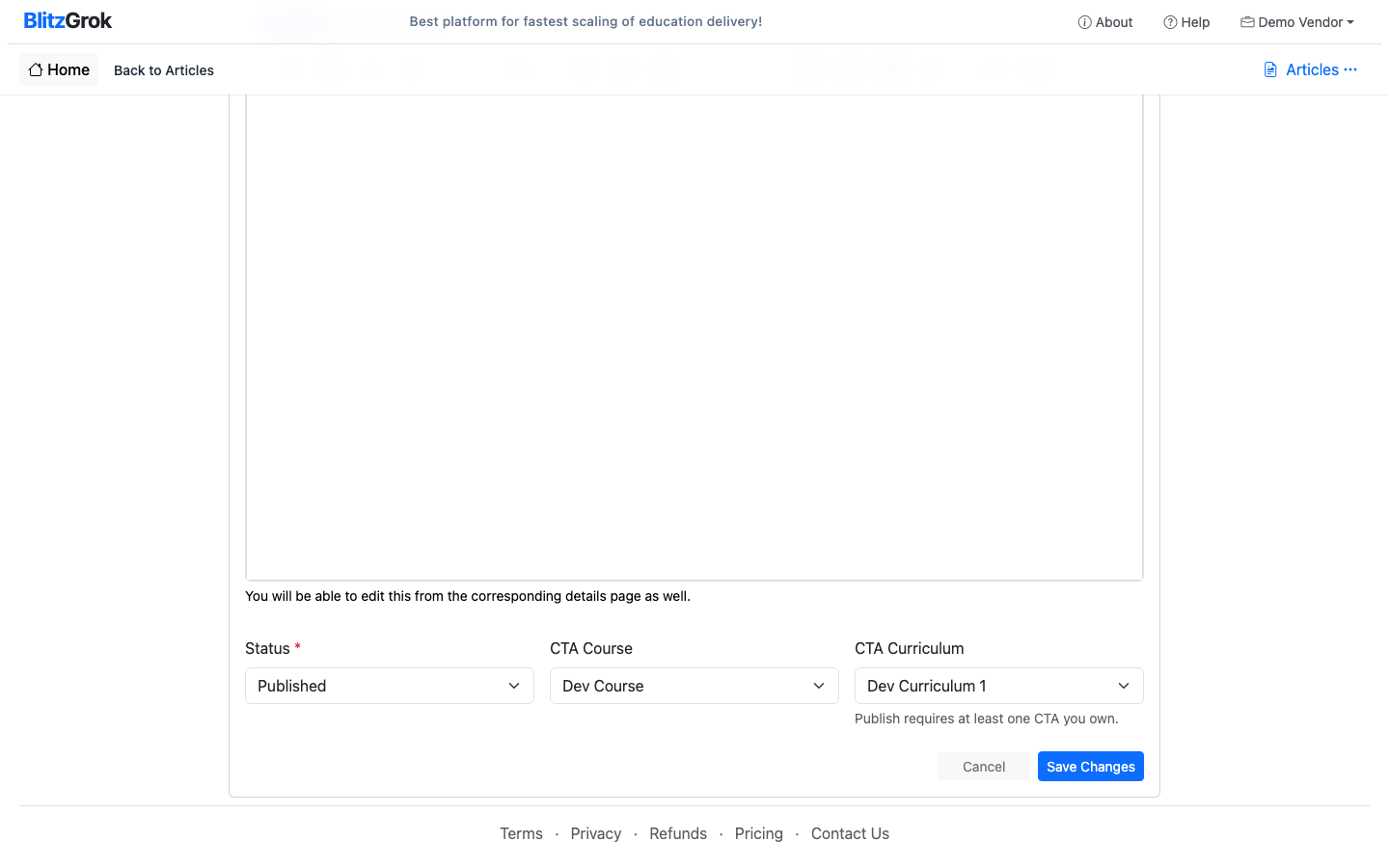
Status set to Published with CTA Course and CTA Curriculum selected
Set Status to Published after choosing a CTA, then save
Tip: You can keep an article as Draft to preview privately (when signed in as the owner) before publishing.

Troubleshooting

  • Cannot publish: Select a CTA course or curriculum you own. Publishing without a CTA is blocked.
  • CTA dropdown empty: Create and own at least one course or curriculum first, then return to the article form.
  • Articles menu missing: Articles are available only when the Articles feature is enabled for your site.
  • Formatting or videos: Use the Visual tab of the description editor. See the Content Formatting and YouTube Embed guides.
Questions about articles?

We're here to help

Contact Us